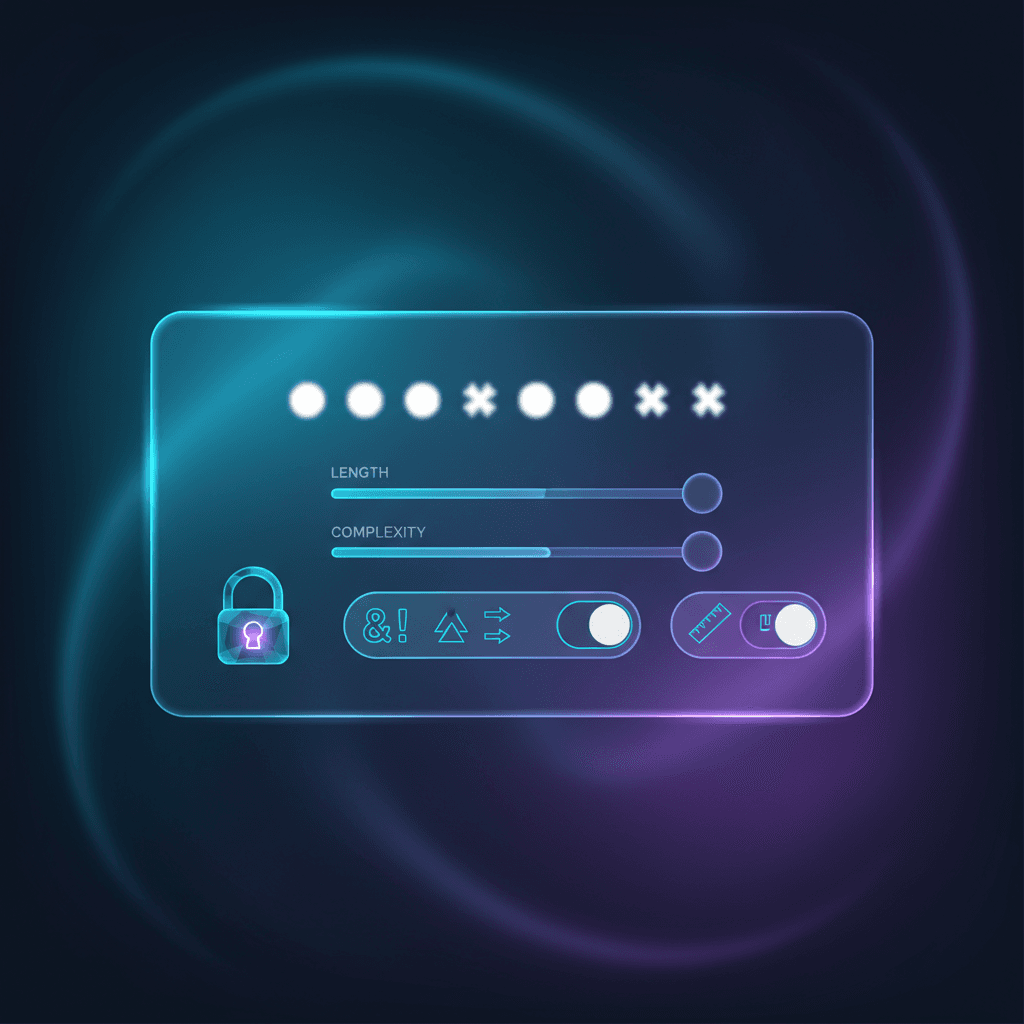
Strong password length: how long to make it, and which options matter
If you reuse passwords or keep them short, one breach can turn into five account takeovers.
Start here:
- Open the Strong Password Generator.
- Pick a length, then copy a password you will not reuse anywhere else.
What matters most: length and randomness
Most password strength arguments miss the point. What you want is a password that is:
- long enough to resist guessing
- random enough that it does not follow a pattern
A random 16-character password is a different animal than a 16-character phrase with predictable substitutions.
If you want a deeper read, NIST summarizes current guidance in SP 800-63B. You can find it on the NIST site: https://pages.nist.gov/800-63-3/sp800-63b.html If you want a deeper read, NIST summarizes current guidance in SP 800-63B.
Recommended lengths (simple, practical)
Use this as a starting point:
| Where you use it | Suggested length | Notes |
|---|---|---|
| Low-risk accounts you can replace | 12 to 16 | Still unique per site |
| Email, banking, and anything tied to money | 16 to 24 | Use a password manager if you can |
| Password manager master password | 20+ | A passphrase can work well here |
If a site caps length at 12 or 16, use the maximum it allows.
Which generator options matter
Uppercase, lowercase, numbers, and symbols
Including more character types can help, but it is not a magic trick. Length and randomness do most of the work.
If a site rejects symbols, turn symbols off and increase length.
Excluding ambiguous characters
If you will type the password by hand, exclude lookalikes like 0/O and l/I. It reduces mistakes when you are on mobile.
Passphrases vs. random strings
- Passphrase (words): Easier to type and remember; use 4–6 unrelated words with separators. Do not use famous quotes or lyrics.
- Random string: Best entropy per character; ideal when a password manager stores it for you.
If you must type the password often, a long passphrase may beat a shorter random string for usability—aim for 20+ characters either way.
Common mistakes that weaken passwords
- Reusing the same password across sites
- Using patterns (
Summer2026!,CompanyName123) - Keeping passwords in a plain text note
- Sharing passwords in chat without a secure channel
Storage, rotation, and 2FA
- Storage: Use a reputable password manager. Do not email or DM passwords to yourself.
- Rotation: Rotate only when there is a risk (breach, shared access, exposed device). Frequent forced changes often lead to weaker patterns.
- 2FA: Turn on hardware key or TOTP (authenticator app) wherever possible. SMS is better than nothing but weaker than app-based codes.
When to regenerate a password
- The site or service discloses a breach or you get a credential-stuffing alert.
- You reused it anywhere else (fix all instances; stop reusing).
- You shared it temporarily with a contractor or teammate—rotate after their access ends.
- You stored it in an unsafe place (plain text doc, email, chat history).
Things that are not real security
- Swapping
afor@andsfor$while keeping a short base word. - Adding
2026!to every password you use. - Keeping the same 10-character root and just changing the last digit each year.
Quick decision tree
- Do you have a password manager? Use a 16–24 char random string with all character sets.
- Typing often on mobile? Use a 20+ char passphrase with separators, exclude ambiguous characters.
- Site blocks symbols or long length? Turn symbols off, max the length, keep upper+lower+numbers.
- Shared account temporarily? Generate a new password, share once over a secure channel, rotate afterward.
How to use Textavia's password generator
- Open the Strong Password Generator.
- Set a length (16 is a good default for most accounts).
- Toggle character sets based on the site's rules, then copy.
Related tools
- Need a unique identifier that is not a password? Use the UUID generator.
- Debugging auth tokens? Inspect claims with the JWT decoder.
- Picking a random value for a test? Try the random number generator.
Privacy and security
Textavia generates passwords locally in your browser using the Web Crypto API (crypto.getRandomValues). Your passwords are not uploaded to a server.