Search live page text
Find visible paragraphs, headings, links, buttons, tables, labels, supported frames, and open shadow DOM.
 Chrome extension by Textavia
Find and replace text across live web pages, including page copy, forms, editors, frames, and open shadow DOM.
Find visible paragraphs, headings, links, buttons, tables, labels, supported frames, and open shadow DOM.
Use the same workflow for textareas, contenteditable regions, and single-line inputs when you enable them.
Move through matches, replace the active result, or run a confirmed replacement batch across the page.
Reverse the most recent replacement batch across page text and editable fields while you review changes.
Product tour
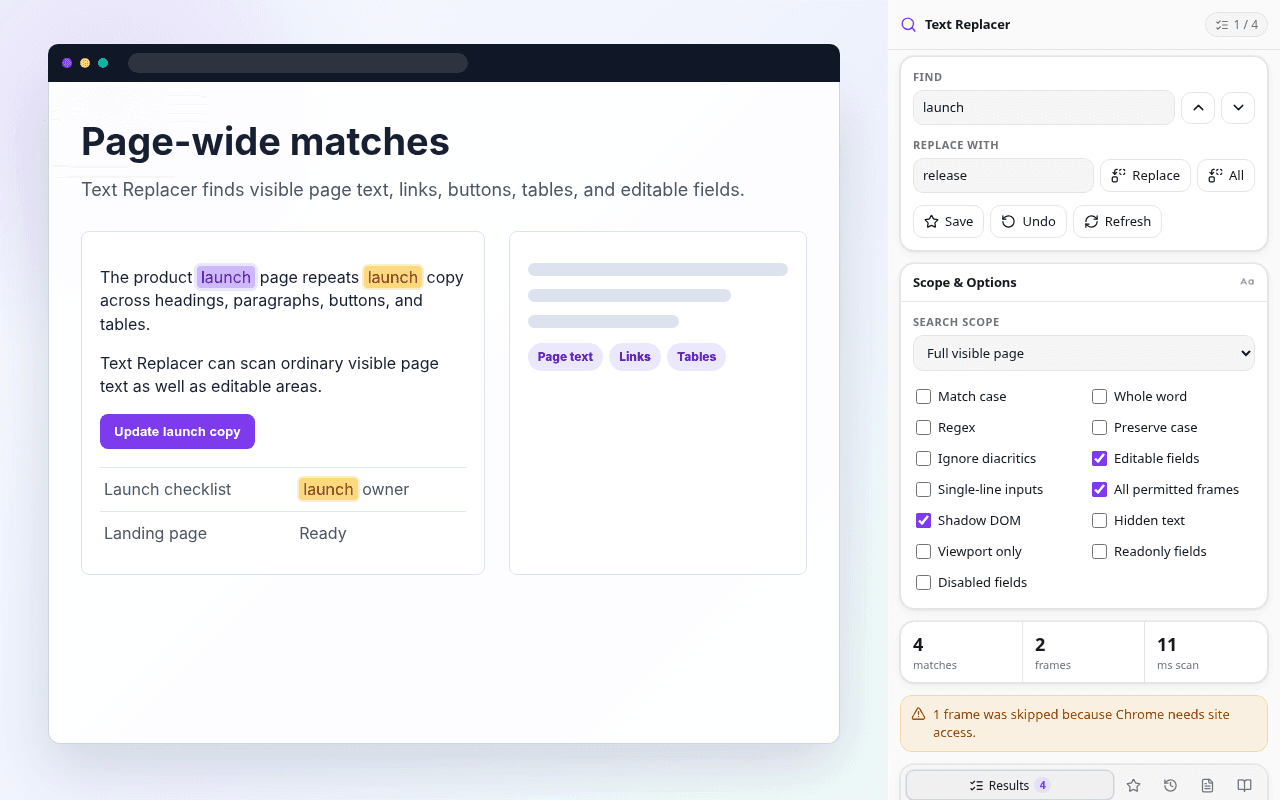
Text Replacer stays beside the page, keeps matches visible, and gives you controls for the places where browser text actually lives.
Matches in ordinary page text are highlighted without changing the document.
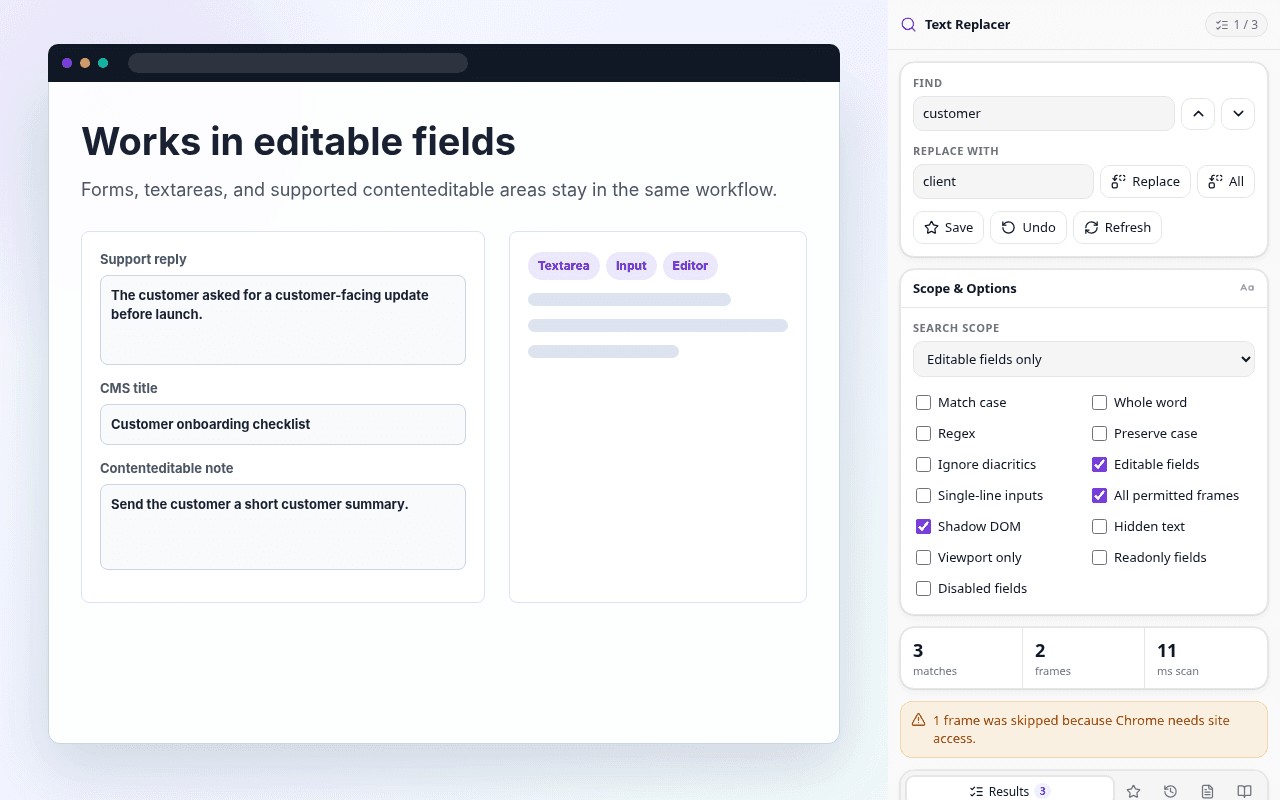
Textareas, forms, and supported rich text areas stay in the same side-panel workflow.
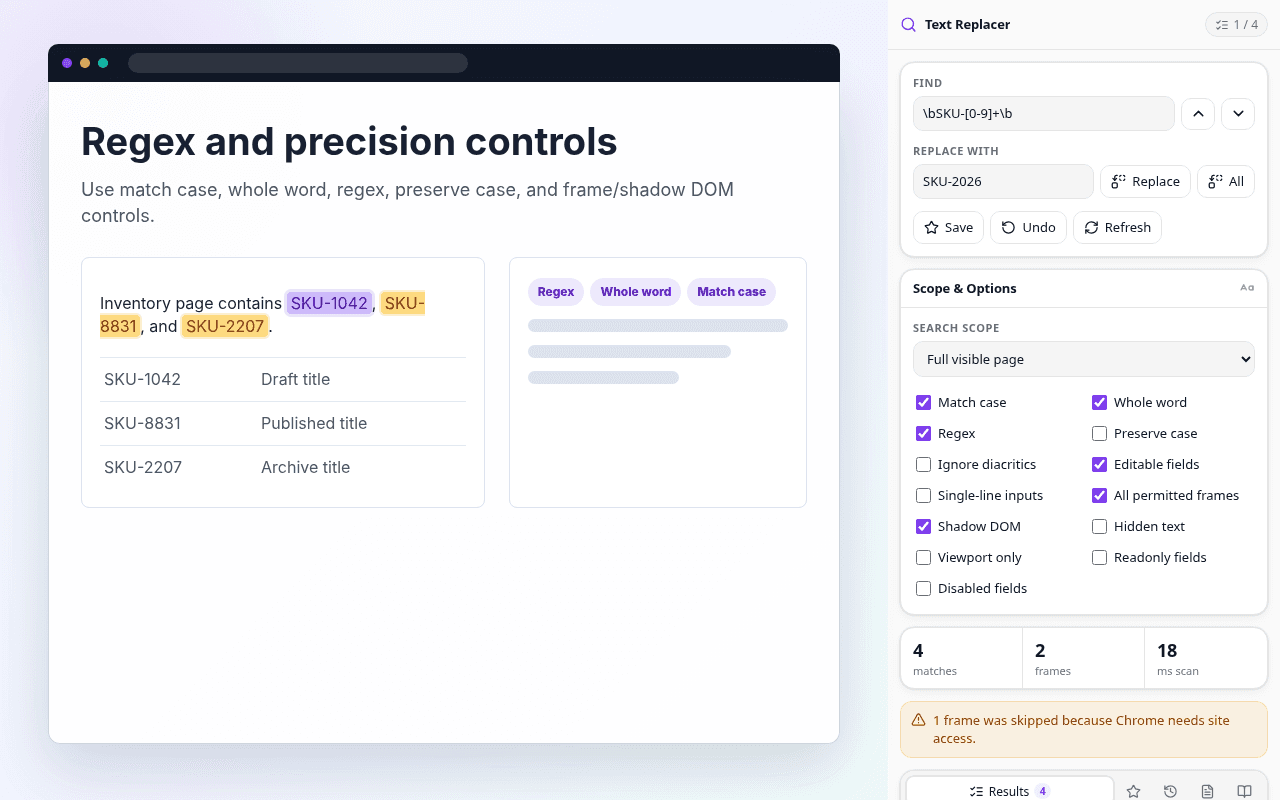
Use regex, whole-word matching, diacritic-insensitive search, and preserve-case replacements.
Text Replacer lives in Chrome's side panel, so it stays open beside the page while you work. Pin the extension from Chrome's puzzle-piece menu if you want it available from the toolbar.
Click the extension icon on the current tab.
Use Ctrl+Shift+F, or Command+Shift+F on macOS. You can customize it at chrome://extensions/shortcuts.
The panel updates as you work, so you do not need a separate search button.
Search scope controls where the extension looks before replacement starts.
| Scope | What it searches |
|---|---|
| Full visible page | Default. Searches visible page text plus editable fields. |
| Editable fields only | Searches inputs, textareas, and contenteditable regions without touching read-only page copy. |
| Read-only page text only | Searches ordinary page content and excludes editable targets. |
| Current selection | Limits matching to text currently selected on the page or in an active field. |
| Current element or subtree | Searches only the element you last interacted with and its descendants. |
| Current frame | Searches only the frame that currently has focus. |
The panel separates matching behavior from page-inclusion controls. Settings are remembered between sessions.
| Option | Effect | Default |
|---|---|---|
| Match case | Makes matching strict about uppercase and lowercase. | Off |
| Whole word | Avoids replacing text inside larger words. | Off |
| Regex | Treats Find as a JavaScript-style regular expression. | Off |
| Preserve case | Mirrors uppercase, lowercase, and title-case matches onto the replacement. | Off |
| Ignore diacritics | Lets cafe match cafe with accents while preserving original offsets. | Off |
| Option | Effect | Default |
|---|---|---|
| Editable fields | Includes textareas and contenteditable editors. | On |
| Single-line inputs | Includes one-line text inputs when you need form-field coverage. | Off |
| All permitted frames | Scans same-origin and site-permitted frames. | On |
| Shadow DOM | Looks inside open shadow roots used by web components. | On |
| Hidden text | Includes visually hidden text only when enabled. | Off |
| Viewport only | Limits matches to the content currently scrolled into view. | Off |
| Readonly fields | Includes readonly fields that are otherwise skipped. | Off |
| Disabled fields | Includes disabled fields that are otherwise skipped. | Off |
Turn on Regex to use a JavaScript-style regular expression. Patterns run globally and with Unicode support, and they stay case-insensitive unless Match case is enabled.
$1 through $99 insert captured groups, $& inserts the whole match, and $$ inserts a literal dollar sign.
Risky nested patterns are rejected before they run, and long-running scans are cancelled so the page does not freeze.
Example: find (\w+)@(\w+)\.com and replace with $1 at $2 dot com to change [email protected] into sales at acme dot com.
After a scan, the summary strip shows matches, frames searched, and scan time. The Results tab lists every match with enough context to decide what to replace.
Replacement is explicit. The extension asks before actions that could surprise you, and replacement status reports replaced, skipped, failed, and possibly reverted matches.
The lower tabs turn repeated work into reusable local items.
Save a search configuration, reload it later, or remove it from the Saved tab.
Successful replacements are stored newest-first, up to 20 entries, so recent workflows can be rerun.
Create reusable snippets, insert them at the active editable cursor, or transform selected editable text to UPPER or lower.
The extension uses Chrome's activeTab model by default, so it works after you open it on the current tab instead of requesting broad access at install time.
Text Replacer reports unsupported surfaces as warnings instead of silently editing the wrong thing.
| Content type | Supported? |
|---|---|
| Visible page text, links, buttons, tables, labels | Yes |
| Textareas and contenteditable editors | Yes |
| Single-line text inputs | Optional |
| Open shadow DOM | Yes |
| Same-origin and permitted frames | Yes |
| Cross-origin frames without granted access | No |
| Chrome internal pages, Web Store pages, sign-in pages | No |
| PDF viewer, images, video captions, canvas-rendered text | No |
| Closed shadow DOM | No |
Scanning and replacement run locally in Chrome. Textavia does not receive page text, form values, search terms, replacement terms, or URLs.
Most issues come down to page access, scope settings, or browser surfaces Chrome does not expose to extensions.
Chrome may be blocking the current page or a frame. If the access button appears, grant access for that site. Otherwise use the extension on a normal http or https page.
Check the search scope, Match case, Whole word, frame, Shadow DOM, hidden text, and single-line input settings. Some text is rendered as canvas or protected content and cannot be edited.
Usually no. Read-only page text changes are local to the loaded page and normally disappear on reload. Fields and editors persist only if the site saves or submits them.
Some editors keep their own document model and may restore text after the extension edits the DOM. Text Replacer reports those as possible page reverts.
No. Scanning and replacement run locally in Chrome. Page text, form values, search terms, replacement terms, and URLs are not sent to Textavia.