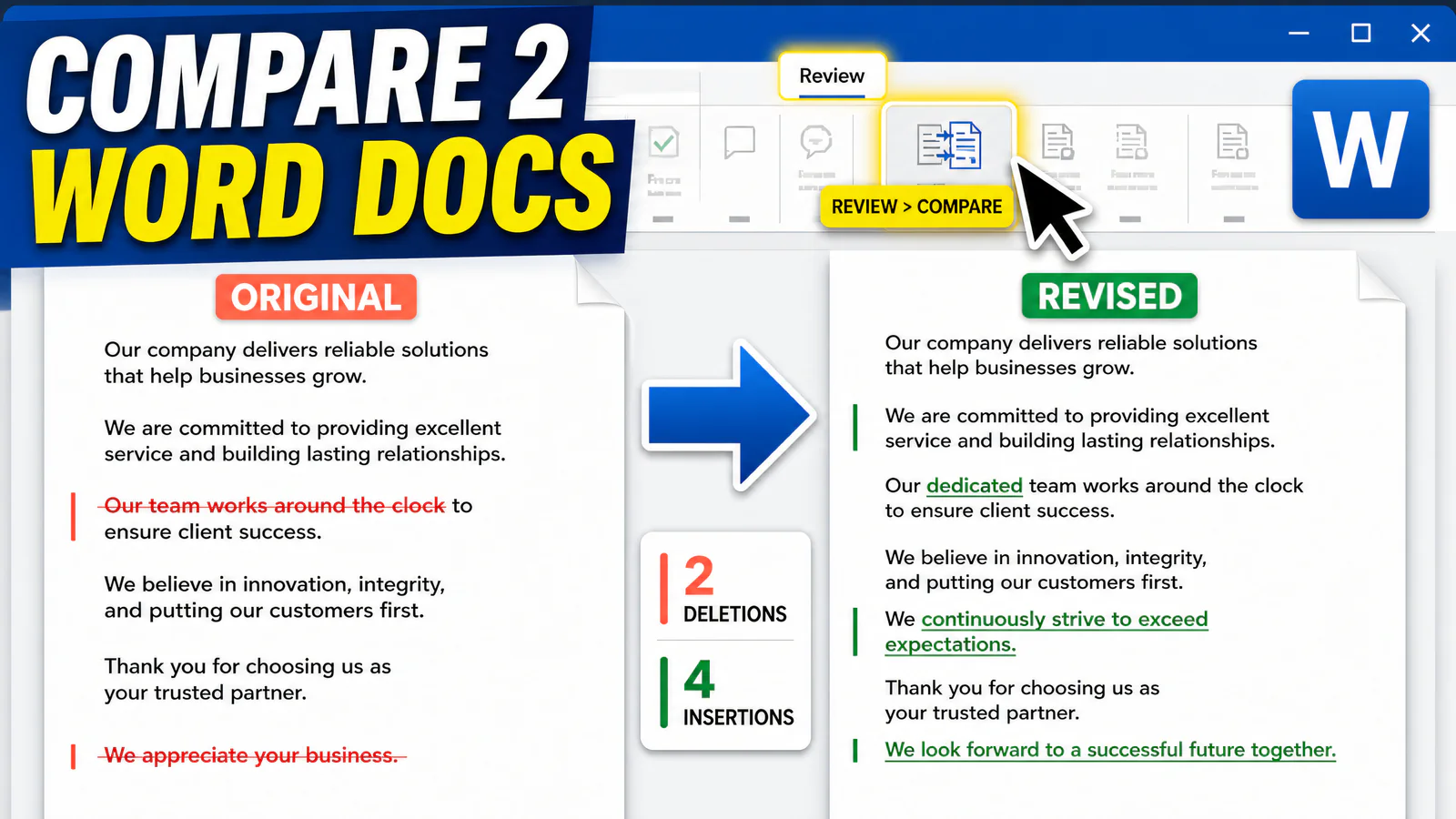
Word has shipped a proper way to compare two documents since 2007, and most people who email drafts back and forth have never clicked it. Review > Compare, pick the original, pick the revision, ten seconds. Word builds a third document with every insertion and deletion marked.
Lawyers call the result a blackline or redline, and it exists because "I only changed the date, I promise" is a sentence you should never have to take on faith.
Last month I compared two versions of a rental agreement, fourteen pages each, where the agent swore nothing had changed except the dates. Compare found a new carpet-cleaning clause on page nine. Nobody was lying exactly, someone had edited an old template and forgot, but I was glad I checked.
The Compare tool, step by step
- Open Word. You don't need either document open yet.
- Go to Review > Compare > Compare.
- Pick the original document in the left dropdown and the revised one on the right. Browse works if they aren't recent files.
- Click More if you want to narrow what counts as a change (more on that below).
- OK.
Word opens a new three-pane view. The compared document in the middle with deletions struck through and insertions underlined, a revision pane listing every edit down the side, and the two source documents stacked on the right so you can check context without switching windows.
The compared document is a brand-new file. Your two originals are untouched, which means you can run Compare recklessly,, nothing gets overwritten.
Microsoft's own walkthrough is here if the menus have moved by the time you read this.
How to compare changes in two Word documents (reading the output)
The marks follow Track Changes conventions even though nobody tracked anything.
- Struck-through text was in the original and got removed.
- Underlined text is new in the revision.
- A vertical line in the left margin flags any line containing a change, useful for skimming a long document fast.
And each change in the revision pane is clickable. Jump to it, then accept or reject it like a normal tracked change. Accept the ones you like, reject the rest, save the middle document, and Compare has quietly become a merge tool.
The count at the top of the revision pane matters more than it looks. "47 revisions" in a document where the author claimed one edit is the whole conversation.
How to compare differences in two Word documents side by side
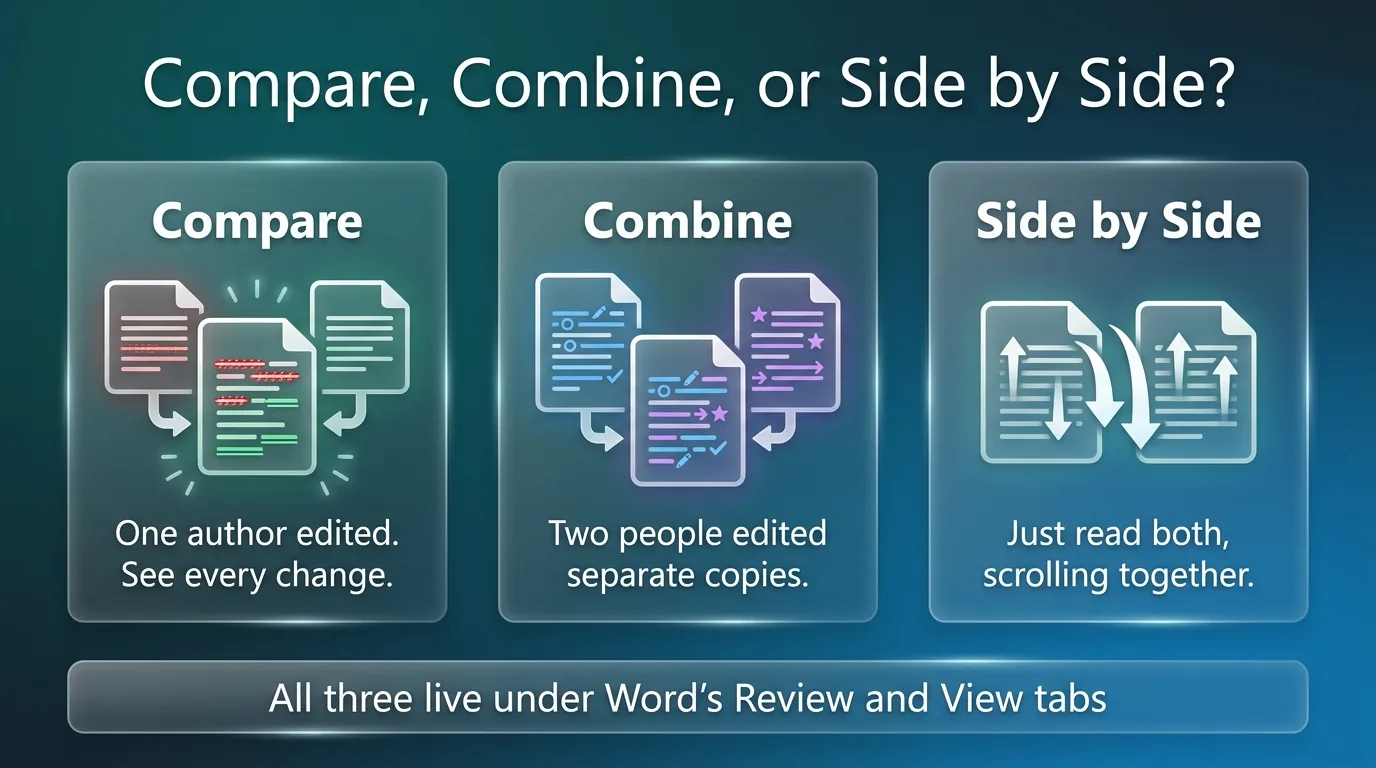
Sometimes you don't want a marked-up report. You want both drafts on screen, scrolling together, so you can read rather than audit.
View > View Side by Side opens both documents in parallel with synchronous scrolling on by default. Scroll one, the other follows. If the documents are different lengths the sync drifts, and the Reset Window Position button on the same ribbon lines them back up.
It's the better choice when the two files diverge so much that a formal compare would light up every page in red, a rewrite rather than an edit.
Combine, for when two people edited separate copies
Compare assumes one original and one revision. Combine (right under it in the same menu) assumes you emailed a draft to two reviewers and both sent back edits.
Run Review > Compare > Combine on the pairs, and Word merges the edits into one document with each person's changes attributed by author name and shown in a different color. Accept and reject per change, same as before.
In my experience this is the feature that finally cures the filename-versioning habit, report_final_v3_JANE_edits_FINAL.docx and its cousins. Combine was built for exactly that mess.
When Compare is grayed out or noisy
Grayed out. The document is protected. Restricted editing, a marked-as-final flag, or a password lock all disable Compare until you turn the protection off.
Every line shows as changed. Formatting differences are drowning the wording differences. Rerun Compare, click More, and untick comparison settings you don't care about, formatting and case changes being the usual suspects. Whitespace-only edits stop lighting up the report.
Leftover tracked changes warning. If either document still has unaccepted tracked changes, Word warns you that it will treat them as accepted for the comparison. Accept or reject them properly first and the numbers stop being confusing.
Moved paragraphs read as deleted plus inserted. That's just how Compare sees a move. The text isn't gone; check the insertion further down before panicking.
Character level or word level. Under More there's a "show changes" setting most people never touch. Word level marks "cat" changed to "cats" as one replaced word, character level marks just the added s. Character level is sharper for contracts and dosage-style text where one letter matters; word level reads cleaner for prose.
Tables and images get compared too, for what it's worth. A changed cell shows like changed text, while a swapped image just flags as a replaced object without telling you what's different about it. Eyeball images yourself.
Comparing two documents without Word
Compare lives in desktop Word only. Word for the web doesn't have it, which surprises people mid-deadline.
Free routes that work anywhere.
- Google Docs has its own version under Tools > Compare documents, and the output arrives as suggested edits in a new file.
- Paste both versions into a browser-based text comparison tool. Put the original on the left and the revision on the right. Check the tool's privacy policy before you paste a confidential draft.
For two lists rather than two documents (email addresses, invitees, SKUs), the List Comparer answers the narrower question of which items appear in one list and miss from the other.
Preparing plain-text copies
For a separate text-only comparison, use Remove Formatting and, when needed, Remove Line Breaks to clean imported text. Keep the original files unchanged so the cleanup does not hide meaningful differences. If your source is a scan, the image-to-text guide covers extraction before comparison.
FAQs
What's the difference between Track Changes and Compare? Track Changes records edits while they happen. Compare reconstructs them afterward from two finished files. When someone forgot to turn on Track Changes, or turned it off on purpose, Compare recovers what changed anyway.
Can Word tell me who made each change? Compare can't, it only sees the two files. Combine attributes changes per author because it works from each reviewer's copy. For a single shared file, version history in OneDrive or SharePoint holds the who-and-when.
Does Compare work in Word on the web or on a phone? No. It's desktop Word for Windows and Mac. Use Google Docs' compare or a browser-based text comparison tool instead.
Can I compare two versions of the same file? If it lives in OneDrive or SharePoint, open File > Info > Version History, then open an older version and run Compare against the current one.
Why does my comparison show hundreds of formatting changes? Someone applied a different style or template. Rerun with formatting unticked under More, and the wording changes surface again.
Can I compare three or more documents? Two at a time is the limit. Compare draft one against draft two, then compare that result against draft three. Clumsy but it works, and Combine handles the two-reviewers case directly.
Related: Text Cleaner.