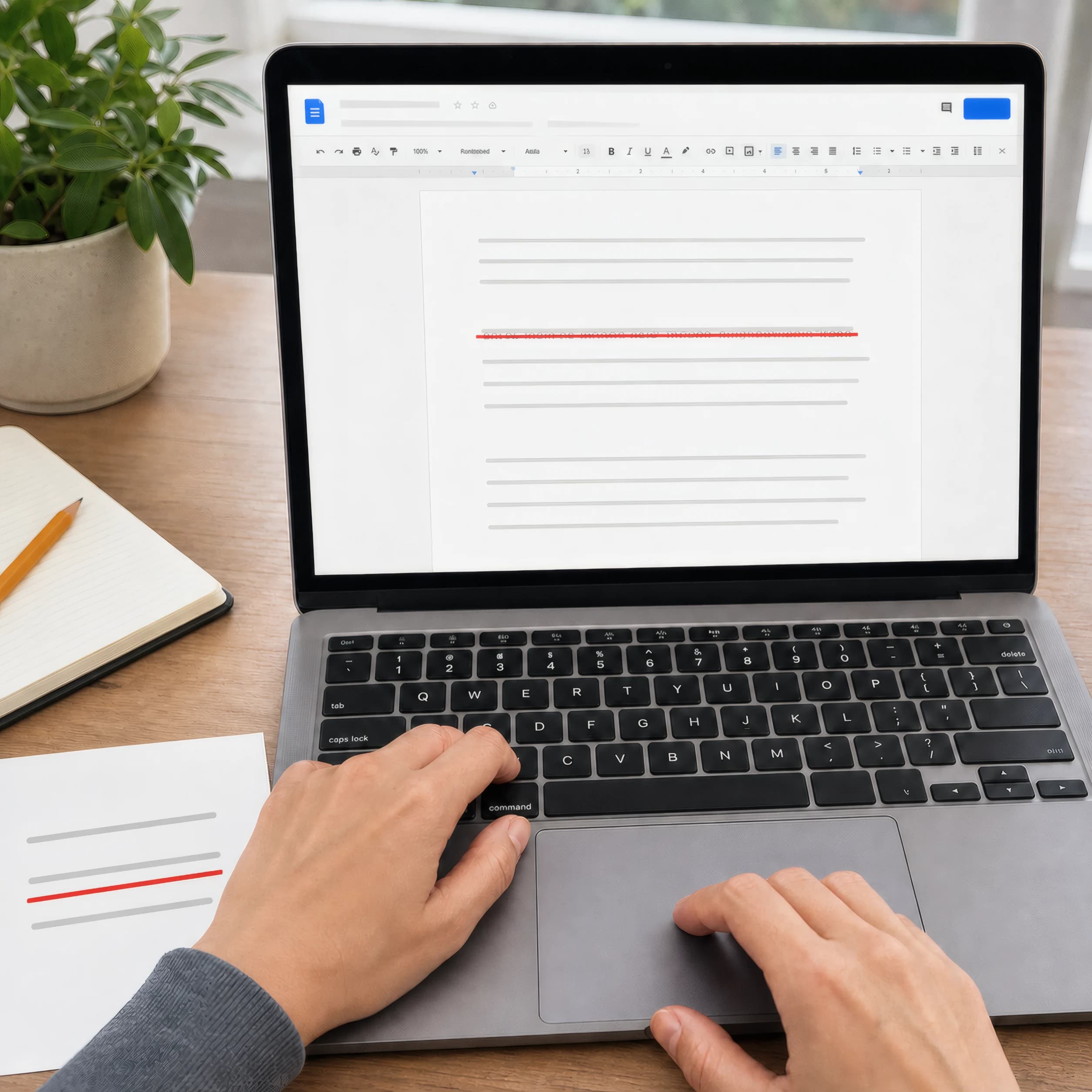
The Google Docs strikethrough shortcut is Alt + Shift + 5 on Windows and Chromebook, or Command + Shift + X on Mac. Select the words first, press the keys together, and the line appears. Press the same combination again to remove it.
| Device | Google Docs shortcut |
|---|---|
| Windows | Alt + Shift + 5 |
| Chromebook / ChromeOS | Alt + Shift + 5 |
| Mac | Command + Shift + X |
| Android with a hardware keyboard | Alt + Shift + 5 |
| iPhone, iPad, or touchscreen Android | Use the Format control in the app |
Those combinations match Google's current Google Docs keyboard shortcut reference. If you need crossed-out words for a bio, username, or other plain-text field, jump to the Unicode strikethrough generator. It solves a different problem than Docs formatting.
1. Use the Google Docs strikethrough shortcut on Windows
Highlight a word, sentence, or several paragraphs. Then hold Alt and Shift while pressing 5 on the number row.
The shortcut is a toggle. You can leave the text selected and press Alt + Shift + 5 again to restore ordinary text.
One small keyboard detail catches people: use the 5 above the letters rather than a numpad key if the shortcut does nothing. Some browser extensions and international keyboard layouts can also claim a key combination before Docs receives it.
2. Use the shortcut on a Chromebook
The Chromebook strikethrough shortcut in Google Docs is also Alt + Shift + 5.
Selection matters. Double-click for one word, drag across a longer passage, or hold Shift while moving with the arrow keys. Then apply the shortcut. Google's ChromeOS shortcut table lists the same combination as Windows.
3. Strikethrough in Google Docs on Mac
Select the text and press Command + Shift + X.
Mac users sometimes try the Windows combination out of habit. Google assigns a different shortcut on macOS, and its official table uses the letter X. The same keys remove the style when the insertion point is inside struck text or when that text remains selected.
4. Use the Google Docs menu
The menu route is slower, but dependable when a browser, keyboard layout, or accessibility utility intercepts the shortcut.
- Select the text.
- Open Format.
- Choose Text.
- Select Strikethrough.
Google documents that route in its text-formatting instructions. It applies the same native document style as the keyboard shortcut, so exports and collaborators see proper formatting rather than extra characters.
5. Cross out text in the Google Docs mobile app
There is no practical on-screen key combination on a phone. Use the formatting panel instead.
- Open the document in editing mode.
- Double-tap a word, then move the blue selection handles if needed.
- Tap the Format icon, usually shown as an
Awith lines. - In the Text controls, tap Strikethrough.
The exact spacing shifts a little between phone and tablet layouts. Google's Android formatting guide confirms that strikethrough lives with the other font controls. An Android tablet with a connected keyboard can use Alt + Shift + 5.
6. Remove strikethrough without deleting the words
Select the crossed-out text and repeat whichever method applied it:
Alt + Shift + 5on Windows, Chromebook, or supported Android keyboards- On Mac,
Command + Shift + X - Format > Text > Strikethrough on desktop
- The Strikethrough control in the mobile formatting panel
If newly typed words keep appearing with a line, place the cursor at the end of the struck passage and toggle the style off before typing. Ctrl + \ on Windows or Command + \ on Mac clears all direct formatting from a selection, including bold, color, and italics, so use that broader reset carefully.
7. Strikethrough in Microsoft Word
Word puts the command on Home > Font > Strikethrough. Select the text, then click the letters with a line through them. Microsoft's current instructions also explain double strikethrough through the Font dialog.
On Word for Windows, the ribbon sequence Alt, H, 4 toggles single strikethrough in current desktop releases. Press the keys in sequence. Word installations can differ, so the Home tab button remains the reliable fallback.
Track Changes serves another purpose. Use it when reviewers need an auditable record of insertions and deletions; ordinary strikethrough is simply visual formatting.
8. Strikethrough in Excel
Select a cell or a portion of text inside the formula bar, then press Ctrl + 5 on Windows. Repeat it to remove the line. Microsoft lists that combination in its Excel keyboard shortcut reference.
For a menu route, open the Format Cells dialog, choose Font, and turn Strikethrough on. Applying the format to a whole cell does not alter its value or make a formula stop calculating.
9. Cross out a Slack message
Slack's desktop apps can strikethrough selected text with Command + Shift + X on Mac or Ctrl + Shift + X on Windows and Linux. Slack lists both in its official shortcut directory.
The formatting toolbar works too. Highlight the words before sending and select Strikethrough. Depending on the workspace's message-formatting preference, typing a tilde on each side may also render the effect:
~rescheduled for Tuesday~
10. Use Markdown in Discord, GitHub, and compatible editors
Put two tildes on each side of the words:
~~old delivery date~~ new delivery date
Discord messages and many Markdown editors render that as crossed-out text. GitHub accepts double tildes, and its formatting syntax reference also documents a single-tilde form.
The tildes are markup. They may remain visible in a plain-text field or an app whose Markdown flavor does not support strikethrough, so preview the message before publishing it.
11. Use semantic strikethrough in HTML
Choose the element according to what the line means:
<p>Price: <s>$49</s> $35</p>
<p>Meeting moved from <del>Monday</del> to Tuesday.</p>
<s> marks information that is no longer accurate or relevant. <del> represents a deletion from the document. That distinction can help browsers and assistive technology interpret the edit, and CSS can handle purely decorative lines.
Writing Markdown for a site? Convert and inspect it with the Markdown to HTML tool before publishing.
12. Generate copy-and-paste Unicode strikethrough
Native document formatting does not survive every destination. A Google Docs style disappears when you paste into an Instagram bio, a plain-text form field, or a filename.
The strikethrough text generator adds the Unicode Combining Long Stroke Overlay, U+0336, after characters. That produces text such as c̶o̶m̶p̶l̶e̶t̶e̶d̶ that carries its line when copied.
Use Unicode when the destination accepts plain text and offers no native style. Keep it short. Combining marks can render unevenly between fonts, screen readers may announce the text awkwardly, and editing one letter in the middle is fiddly.
| Need | Better method |
|---|---|
| A shared Google document | Native Docs shortcut |
| A reviewed deletion | Suggesting mode or version history |
| A Discord message | Markdown ~~text~~ |
| A website edit with meaning | HTML <del> |
| A social bio or plain-text profile | Unicode generator |
When the Google Docs shortcut does not work
Try these fixes in order:
- Confirm the document is in editing mode. View-only access cannot change formatting.
- Select actual text. With no selection, the shortcut changes the style for what you type next, which can look like nothing happened.
- Use the number-row
5and press all three keys together. - Open Format > Text > Strikethrough. If the menu works, a browser or operating-system shortcut probably intercepted the keys.
- Check the live shortcut list with
Ctrl + /on Windows and ChromeOS, orCommand + /on Mac. Google notes that some shortcuts vary by language and keyboard layout. - In a Word file opened through Google Docs, switch to editing mode or convert the file if formatting behaves inconsistently.
Related editing tasks
Use Remove Formatting when you need a plain-text copy instead of rich text. For a full revision review, see how to compare two documents in Word. For chat-specific emphasis, the Discord bold text guide covers a different formatting workflow.
Strikethrough shortcut FAQ
What is the strikethrough shortcut for Google Docs on Windows 11?
It is Alt + Shift + 5. The Windows version does not change between Windows 10 and Windows 11 because the command belongs to Google Docs in the browser.
What is the Google Docs strikethrough shortcut on Mac?
Use Command + Shift + X after selecting the text.
Can I add a strikethrough button to the Google Docs toolbar?
Google Docs currently places the command under Format > Text rather than as a permanent main-toolbar button. The shortcut or Tool finder is quicker than installing an extension for one command. Press Alt + / on Windows or Option + / on Mac, type strikethrough, and press Enter.
Does strikethrough print or appear in a PDF?
Native Google Docs strikethrough is part of the document's formatting, so it appears when the document is printed or exported to PDF. Check the PDF once before sending it when the document uses unusual fonts.
Is strikethrough the same as Suggesting mode?
No. Strikethrough draws a line through visible text. Suggesting mode records a proposed deletion that collaborators can accept, reject, and discuss.
How do I cross out text that I can paste anywhere?
Use the Unicode strikethrough generator, then copy its output. Native Google Docs formatting is preferable inside a document because it is cleaner to edit and more accessible.
Related: Underline Text Generator.